How to Set Up a Cloudflare Tunnel in Kubernetes
How to Set Up a Cloudflare Tunnel in Kubernetes
Kubernetes ↗ is a container orchestration tool that is used to deploy applications onto physical or virtual machines, scale the deployment to meet traffic demands, and push updates without downtime. The Kubernetes cluster, or environment, where the application instances are running is connected internally through a private network. You can install the cloudflared daemon inside of the Kubernetes cluster in order to connect applications inside of the cluster to Cloudflare.
This guide will cover how to expose a Kubernetes service to the public Internet using a remotely-managed Cloudflare Tunnel. For the purposes of this example, we will deploy a basic web application alongside cloudflared in Google Kubernetes Engine (GKE). The same principles apply to any other Kubernetes environment (such as minikube, kubeadm, or a cloud-based Kubernetes service) where cloudflared can connect to Cloudflare’s network.
Architecture
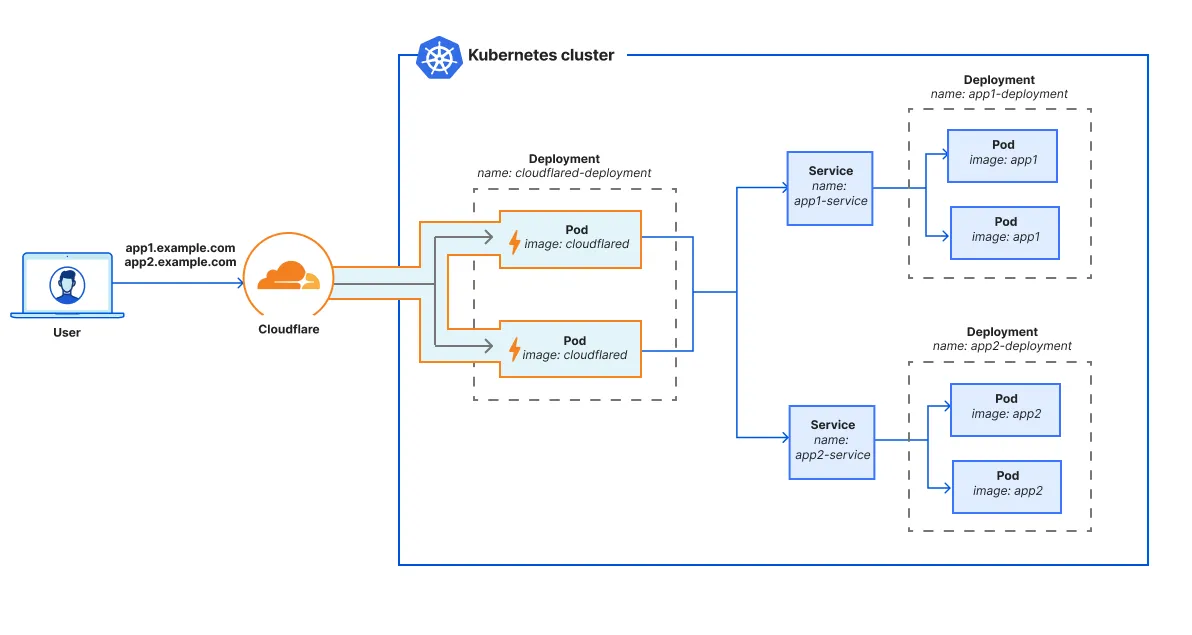
As shown in the diagram, we recommend setting up cloudflared as an adjacent deployment ↗ to the application deployments. Having a separate Kubernetes deployment for cloudflared allows you to scale cloudflared independently of the application. In the cloudflared deployment, you can spin up multiple replicas running the same Cloudflare Tunnel — there is no need to build a dedicated tunnel for each cloudflared pod. Each cloudflared replica / pod can reach all Kubernetes services in the cluster.
Once the cluster is connected to Cloudflare, you can configure Cloudflare Tunnel routes to control how cloudflared will proxy traffic to services within the cluster. For example, you may wish to publish certain Kubernetes applications to the Internet and restrict other applications to internal WARP client users.
Prerequisites
To complete the following procedure, you will need:
1. Create a GKE cluster
To create a new Kubernetes cluster in Google Cloud:
- Open Google Cloud ↗ and go to Kubernetes Engine.
- In Clusters, select Create.
- Name the cluster. In this example, we will name it
cloudflare-tunnel. - (Optional) Choose your desired region and other cluster specifications. For this example, we will use the default specifications.
- Select Create.
- To connect to the cluster:
- Select the three-dot menu.
- Select Connect.
- Select Run in Cloud Shell to open a terminal in the browser.
- Select Authorise.
- Press
Enterto run the pre-populatedgcloudcommand. - (Recommended) In the Cloud Shell menu, select Open Editor to launch the built-in IDE.
-
In the Cloud Shell terminal, run the following command to check the cluster status:
NAME TYPE CLUSTER-IP EXTERNAL-IP PORT(S) AGEservice/kubernetes ClusterIP 34.118.224.1 <none> 443/TCP 15m
2. Create pods for the web app
A pod represents an instance of a running process in the cluster. In this example, we will deploy the httpbin ↗ application with two pods and make the pods accessible inside the cluster at httpbin-service:80.
-
Create a folder for your Kubernetes manifest files:
-
Change into the directory:
-
In the
tunnel-exampledirectory, create a new file calledhttpbin.yaml. This file defines the Kubernetes deployment for the httpbin app.apiVersion: apps/v1kind: Deploymentmetadata: name: httpbin-deployment namespace: defaultspec: replicas: 2 selector: matchLabels: app: httpbin template: metadata: labels: app: httpbin spec: containers: - name: httpbin image: kennethreitz/httpbin:latest imagePullPolicy: IfNotPresent ports: - containerPort: 80 -
Create a new
httpbinsvc.yamlfile. This file defines a Kubernetes service that allows other apps in the cluster (such ascloudflared) to access the set of httpbin pods.apiVersion: v1kind: Servicemetadata: name: httpbin-service namespace: defaultspec: type: LoadBalancer selector: app: httpbin ports: - port: 80 targetPort: 80 -
Use the following command to run the application inside the cluster:
kubectl create -f httpbin.yaml -f httpbinsvc.yaml -
Check the status of your deployment:
NAME READY STATUS RESTARTS AGEpod/httpbin-deployment-bc6689c5d-b5ftk 1/1 Running 0 79spod/httpbin-deployment-bc6689c5d-cbd9m 1/1 Running 0 79sNAME TYPE CLUSTER-IP EXTERNAL-IP PORT(S) AGEservice/httpbin-service LoadBalancer 34.118.225.147 34.75.201.60 80:31967/TCP 79sservice/kubernetes ClusterIP 34.118.224.1 <none> 443/TCP 24hNAME READY UP-TO-DATE AVAILABLE AGEdeployment.apps/httpbin-deployment 2/2 2 2 79sNAME DESIRED CURRENT READY AGEreplicaset.apps/httpbin-deployment-bc6689c5d 2 2 2 79s
3. Create a tunnel
To create a Cloudflare Tunnel:
-
Open a new browser tab and log in to Zero Trust ↗.
-
Go to Networks > Tunnels.
-
Select Create a tunnel.
-
Choose Cloudflared for the connector type and select Next.
-
Enter a name for your tunnel (for example,
gke-tunnel). -
Select Save tunnel.
-
Under Choose an environment, select Docker.
Applications must be packaged into a containerised image before you can run it in Kubernetes. Therefore, we will use the
cloudflaredDocker container image to deploy the tunnel in Kubernetes. -
Instead of running the installation command, copy just the token value rather than the whole command. The token value is of the form
eyJhIjoiNWFiNGU5Z...You will need the token for the Kubernetes manifest file.
Leave the Cloudflare Tunnel browser tab open while we focus on the Kubernetes deployment.
4. Store the tunnel token
cloudflared uses a tunnel token to run a remotely-managed Cloudflare Tunnel. You can store the tunnel token in a Kubernetes secret ↗, which requires data to be encoded as a base64-encoded string. The encoding is not meant to protect the token from being read but to allow for the safe handling of binary data within Kubernetes.
-
Convert the tunnel token into base64 format:
'eyJhIjoiNWFiNGU5Z...' | base64 -
In GKE Cloud Shell, create a
tunnel-token.yamlfile with the following content. Make sure to replace<base64_tunnel_token>with your base64-encoded token value (ZXlKa...NKOQo=).apiVersion: v1data: token: <base64_tunnel_token>kind: Secretmetadata: name: tunnel-token namespace: defaulttype: Opaque -
Create the secret:
kubectl create -f tunnel-token.yaml -
Check the newly created secret:
NAME TYPE DATA AGEtunnel-token Opaque 1 100s
5. Create pods for cloudflared
To run the Cloudflare Tunnel in Kubernetes:
- Create a Kubernetes deployment for a remotely-managed Cloudflare Tunnel:
apiVersion: apps/v1kind: Deploymentmetadata: name: cloudflared-deployment namespace: defaultspec: replicas: 2 selector: matchLabels: pod: cloudflared template: metadata: labels: pod: cloudflared spec: securityContext: sysctls: # Allows ICMP traffic (ping, traceroute) to resources behind cloudflared. - name: net.ipv4.ping_group_range value: "65532 65532" containers: - image: cloudflare/cloudflared:latest name: cloudflared env: # Defines an environment variable for the tunnel token. - name: TUNNEL_TOKEN valueFrom: secretKeyRef: name: tunnel-token key: token command: # Configures tunnel run parameters - cloudflared - tunnel - --no-autoupdate - --loglevel - debug - --metrics - 0.0.0.0:2000 - run livenessProbe: httpGet: # Cloudflared has a /ready endpoint which returns 200 if and only if # it has an active connection to Cloudflare's network. path: /ready port: 2000 failureThreshold: 1 initialDelaySeconds: 10 periodSeconds: 10
-
Deploy
cloudflaredto the cluster:kubectl create -f tunnel.yamlKubernetes will install the
cloudflaredimage on two pods and run the tunnel using the commandcloudflared tunnel --no-autoupdate --loglevel debug --metrics 0.0.0.0:2000 run.cloudflaredwill consume the tunnel token from theTUNNEL_TOKENenvironment variable. -
Check the status of your cluster:
NAME READY STATUS RESTARTS AGEpod/cloudflared-deployment-6d5f9f9666-85l5w 1/1 Running 0 21spod/cloudflared-deployment-6d5f9f9666-wb96x 1/1 Running 0 21spod/httpbin-deployment-bc6689c5d-b5ftk 1/1 Running 0 3m36spod/httpbin-deployment-bc6689c5d-cbd9m 1/1 Running 0 3m36sNAME TYPE CLUSTER-IP EXTERNAL-IP PORT(S) AGEservice/httpbin-service LoadBalancer 34.118.225.147 34.75.201.60 80:31967/TCP 3m36sservice/kubernetes ClusterIP 34.118.224.1 <none> 443/TCP 24hNAME READY UP-TO-DATE AVAILABLE AGEdeployment.apps/cloudflared-deployment 2/2 2 2 22sdeployment.apps/httpbin-deployment 2/2 2 2 3m37sNAME DESIRED CURRENT READY AGEreplicaset.apps/cloudflared-deployment-6d5f9f9666 2 2 2 22sreplicaset.apps/httpbin-deployment-bc6689c5d 2 2 2 3m37s
You should see two cloudflared pods and two httpbin pods with a Running status. If your cloudflared pods keep restarting, check the command syntax in tunnel.yaml and make sure that the tunnel run parameters are in the correct order.
6. Verify tunnel status
To print logs for a cloudflared instance:
kubectl logs pod/cloudflared-deployment-6d5f9f9666-85l5w
2025-06-11T22:00:47Z INF Starting tunnel tunnelID=64c359b6-e111-40ec-a3a9-199c2a6566132025-06-11T22:00:47Z INF Version 2025.6.0 (Checksum 72f233bb55199093961bf099ad62d491db58819df34b071ab231f622deff33ce)2025-06-11T22:00:47Z INF GOOS: linux, GOVersion: go1.24.2, GoArch: amd642025-06-11T22:00:47Z INF Settings: map[loglevel:debug metrics:0.0.0.0:2000 no-autoupdate:true token:*****]2025-06-11T22:00:47Z INF Generated Connector ID: aff7c4a0-85a3-4ac9-8475-1e0aa1af8d942025-06-11T22:00:47Z DBG Fetched protocol: quic2025-06-11T22:00:47Z INF Initial protocol quic...
7. Add a tunnel route
Now that the tunnel is up and running, we can use the Zero Trust dashboard to route the httpbin service through the tunnel.
-
Switch to the browser tab where you were configuring Cloudflare Tunnel.
-
Go to the Route tunnel step.
-
In the Public hostnames tab, enter a hostname for the application (for example,
httpbin.<your-domain>.com). -
Under Service, enter
http://httpbin-service.httpbin-serviceis the name of the Kubernetes service defined inhttpbinsvc.yaml. -
Select Complete setup.
8. Test the connection
To test, open a new browser tab and go to httpbin.<your-domain>.com. You should see the httpbin homepage.
You can optionally create an Access application to control who can access the service.